
How to Grant Access to your Gusto Account
Most of this info is from Gusto’s Help page tutorial here
In order for Common Good to access your Gusto account, you will need to add us as a “collaborator”
Only the Account Owner (Primary admin) of your Gusto account can add collaborators.
To add an external collaborator and set up their permissions:
1. Sign into Gusto as Account Owner (Primary admin).
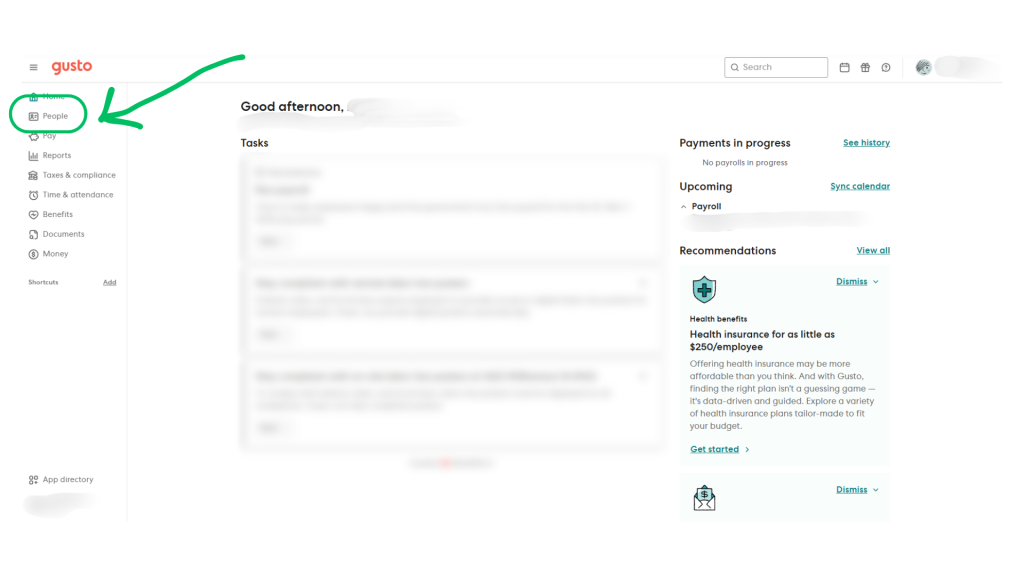
2. Go to “People”
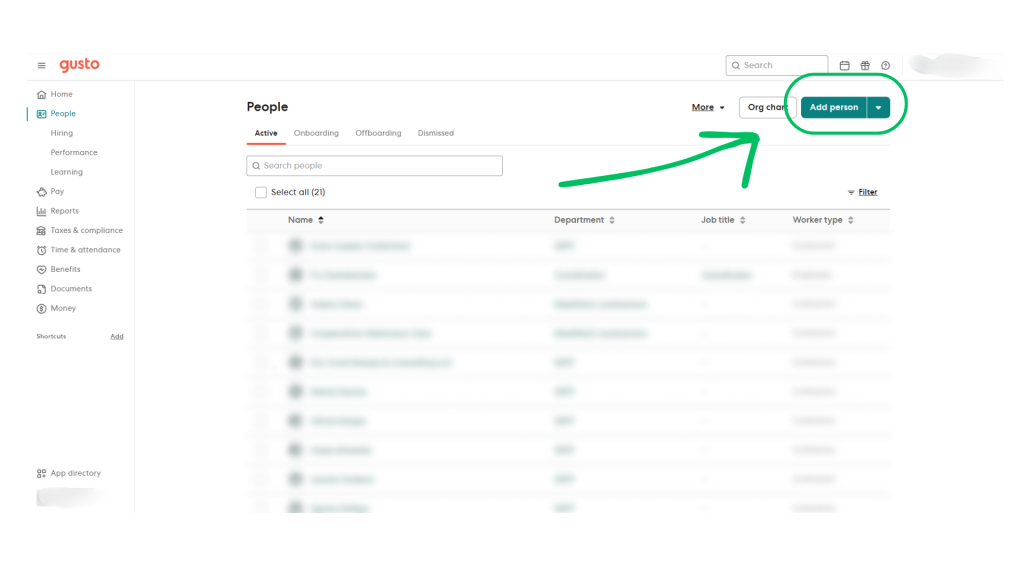
3. Next to “Add person,” click the caret (or arrow) and choose “Add collaborator”
4. Select collaborator type (select accountant or bookkeeper).
5. Enter collaborator details
Enter the the info for the main person you’re working with at Common Good (if there are multiple members of CGBC on your account, just add one of person and we can onboard the rest of the engagement team ourselves)
- First name
- Last name
- Email (must be correct or we won’t get the invite! FYI: our email’s end in “cgb.coop”)
6. Choose role – either Limited or Global admin
- Limited admin – requires custom settings (if you aren’t familiar with Gusto yet, you can just give us Global Admin access for now)
- To customize: choose the access levels for each function.
- Collaborators can only view the parts of Gusto that match their permissions.
- Global admin
- Global admins have predetermined access.
7. Click “Save collaborator”.